A Practical Guide to Role-Based Access for Customer Support Teams
Your support agents are answering WhatsApp, Messenger, Instagram, and web chat from one shared login. That shortcut works fine with five people and becomes a liability at fifteen, when refunds, order data, and customer conversations sit behind permissions nobody has actually defined. For a closer look at the options in this space, see Whatsapp business api provider.
This guide breaks down the roles every support team needs, what each should see, and how to map permissions to real workflows like handovers, escalations, and billing. You will also get a practical way to apply access rules across every channel, audit them, and scale from 5 to 50 agents without permission chaos.
Why Role-Based Access Matters for Support Teams
Without a formal access model, support teams accumulate permissions like barnacles on a ship, slowing response times and creating security holes. Picture ten agents sharing one login: nobody can prove who deleted a ticket, exported a customer list, or issued a refund. The Verizon Data Breach Investigations Report has found that 74% of data breaches involve human error, and shared credentials make that error nearly impossible to trace.
Role-Based Access Control (RBAC) fixes this by assigning permissions to user roles rather than individuals. A Tier 1 agent gets ticket visibility, a team lead gets refund authority, and an administrator gets configuration rights. Each person receives only what the job requires, an approach known as least privilege.
The result is a clear audit trail. Every action maps to a named user and a defined role, so access management becomes a policy decision instead of a guessing game. Support leaders can answer auditors, protect customer data, and onboard new hires without hand-editing permissions one by one.
The Risks of Shared Logins and Over-Permissioned Agents
When three agents use the same login, a disgruntled employee can export your entire customer database and no one knows who did it. That single scenario captures the core problem: shared credentials destroy accountability in every system a support team touches, from the ticket system to the CRM.
The damage shows up in three predictable ways.
- No accountability. Audit logs record a username, not a person. If a refund is issued twice or a ticket vanishes, investigators have no way to connect the action to an individual.
- Privilege creep. Agents covering for absent colleagues request temporary access that never gets revoked. Over months, a Tier 1 agent quietly accumulates admin rights, and a single mistake can alter global settings for the entire help desk.
- Compliance violations. GDPR and similar regulations require demonstrable access controls. Shared logins fail audits outright, and a former employee who still knows the shared password remains a live risk long after their last day.
Over-permissioning also raises the odds of accidental exposure. A support agent with broad CRM access can view sensitive data such as full payment histories or personal contact details without any business need, and that exposure is hard to detect after the fact.
A practical checklist for closing these gaps:
- Issue unique logins to every agent, with no exceptions for convenience.
- Define role-based permissions tied to support tiers and job duties.
- Run access reviews on a regular schedule to catch privilege creep.
- Revoke credentials immediately during deprovisioning, including shared inboxes and integrations.
Each item is simple on its own. Together they turn authorization from an informal habit into a repeatable process that survives staff turnover.
Compliance, Data Privacy, and Customer Trust
One support agent viewing a customer's full payment history without a business need can trigger a GDPR fine of up to 4% of global revenue. That risk is why regulators treat access control as a core security requirement rather than an optional nicety.
Several frameworks speak directly to this. GDPR Article 32 requires appropriate technical measures to secure processing, which includes limiting who can reach personal data. The HIPAA minimum necessary rule says staff should access only the protected health information (PHI) needed for a specific task. SOC 2 includes access control criteria that auditors test by examining how permissions are granted, changed, and removed.
Different industries apply these rules in different ways:
- A healthcare support team must restrict PHI to agents handling clinical inquiries, keeping billing staff out of medical records.
- A financial services team needs segregation of duties, so the person who initiates a refund is not the same person who approves it.
- A SaaS help desk should separate configuration access from ticket handling, so routine agents cannot change workspace-wide settings.
RBAC also produces something compliance teams value: evidence. Audit logs generated by role-based systems show who accessed what, when, and under which role. Those records can be pulled directly into compliance reports, turning a painful audit into a routine export.
The trust dimension matters just as much. Customers hand support teams their most sensitive information, and a visible commitment to data privacy reinforces that relationship. A practical starting point is to map each role to a data sensitivity level, then grant access only up to that level. Agents handling general questions never touch payment data, while billing specialists see financial records but not health or identity documents. This mapping keeps authorization decisions consistent as the team grows, and it gives new hires a clear picture of exactly what their role permits.
Core Roles Every Support Team Needs
Most support teams need four foundational roles, Agent, Team Lead, Admin, and Analyst, each with distinct access needs. These four cover the majority of everyday support scenarios, from answering tickets to managing users and reviewing performance.
Smaller teams often combine roles, especially in the early stages when one person wears several hats. But combining roles without clear boundaries invites conflicts of interest and weakens your audit trail. Even a two-person team benefits from separating who handles tickets from who manages user accounts.
Clear role separation is the backbone of Role-Based Access Control in any help desk or CRM. It keeps sensitive data contained, simplifies access reviews, and makes compliance with standards like SOC 2 or GDPR far less painful.
Agent, Team Lead, Admin, and Analyst: What Each Role Should See
An Agent should see only assigned conversations, while an Admin can access billing settings and user management. The table below maps each role to its typical permissions in a ticket system.
| Role | Typical Permissions |
|---|---|
| Agent | View and respond to assigned tickets, access the knowledge base |
| Team Lead | Assign or reassign tickets, view team metrics, approve refunds up to $50 |
| Admin | Manage users, configure channels, access all data |
| Analyst | Read-only access to all tickets and reports, no PII |
Each role performs different day-to-day tasks. An Agent resolves customer questions and tags tickets for follow-up. A Team Lead balances workloads across tier 1 and tier 2 support and handles escalation paths. An Admin provisions new hires and configures integrations, while an Analyst studies trends without touching customer identities.
Apply the least privilege principle everywhere: default to minimal access and grant more only when a task demands it. This limits damage from mistakes and shrinks your attack surface.
Designing Custom Roles for Escalations and Billing
When your team handles high-value escalations, you need a custom role that can view VIP customer history but cannot issue refunds. Build it by combining permissions rather than starting from scratch.
An Escalation Specialist might view all conversations, reassign tickets, and tag VIP customers, but never delete data or change billing. A Billing Agent can view invoices and process refunds up to a set limit, yet cannot modify payment methods or export financial records.
Segregation of duties matters here. The person who issues a refund should not be the one who reconciles it, or errors and fraud can slip through unnoticed.
Follow a simple process to design any custom role:
- Identify the tasks the role must perform.
- Map each task to the minimum permissions required.
- Test the role with a small pilot group before wider rollout.
- Review access periodically and adjust as duties change.
This approach keeps privilege escalation in check and produces cleaner audit logs. It also makes deprovisioning straightforward when someone leaves or changes teams.
Mapping Permissions to Support Workflows
Permissions must align with how tickets flow through your support pipeline, from first contact to resolution. Role-Based Access Control is not only about hiding data. It also governs workflow actions: who can assign, escalate, close, or reopen a conversation.
When these permissions drift out of alignment, bottlenecks appear fast. A support agent who cannot reassign a misrouted ticket waits for someone else to act. A team lead buried in approval requests becomes a single point of failure.
Mapping roles to workflow steps keeps ownership clear. Each ticket stage should have a defined set of roles authorized to move it forward, and a clear path for privilege escalation when the standard route stalls.
Conversation Access, Assignment, and Handover Rules
If any agent can reassign a conversation to themselves, your team lacks a clear handover process and customers suffer. Assignment rules should follow a simple hierarchy that matches your support tiers.
- Agents view only conversations assigned to them or their team.
- Team Leads reassign tickets within their own team.
- Admins reassign across teams and queues.
- Handover requires a note and updates the ticket status automatically.
Most help desk platforms support this pattern through group and role structures. Zendesk uses groups and assignment rules tied to agent roles. Salesforce Service Cloud relies on profiles, permission sets, and queues. Freshdesk organizes agents into groups with scoped visibility. Intercom applies similar inbox and teammate assignment controls.
Escalation paths deserve the same discipline. A common setup routes Tier 1 to Tier 2 support only after a Team Lead approves the move. This prevents queue hopping and keeps tier 3 support focused on genuine engineering issues.
Every reassignment should write to an audit log. That record shows who moved the ticket, when, and why. Audit trails support access reviews, satisfy SOC 2 and similar compliance expectations, and settle disputes about who handled what.
Payments, Refunds, and Order Data: Who Gets the Keys
The ability to issue a refund should be restricted to a small group, and every refund must be logged with a reason. Payment and order data carry the highest risk in any support stack, and PCI DSS compliance demands strict access controls around cardholder information.
A practical approach separates viewing from acting. Only Billing Agents and Admins see full payment details. Everyone else sees masked data, typically the last four digits. Refunds above a set threshold, say $100, require Team Lead approval before processing.
The risks are concrete. A support agent with unchecked refund rights might accidentally process a $500 refund on the wrong order. A malicious insider could issue fake refunds to a personal account. Both scenarios trace back to permission assignment that was too broad.
| Action | Agent | Billing Agent | Team Lead | Admin |
|---|---|---|---|---|
| View order details | Yes | Yes | Yes | Yes |
| View full payment method | No | Yes | Yes | Yes |
| Issue refund under $100 | No | Yes | Yes | Yes |
| Issue refund above $100 | No | No | Yes | Yes |
| Modify payment method | No | No | No | Yes |
This matrix reflects least privilege and segregation of duties. It also keeps sensitive data and PII exposure narrow, which matters under GDPR, HIPAA, and similar privacy frameworks. Audit logs should capture who acted, when, and the stated reason for every refund or payment change.
Implementing RBAC in a Multi-Channel Inbox
A multi-channel inbox introduces complexity: an agent might need access to WhatsApp but not Instagram DMs. Applying Role-Based Access Control per team alone is not enough, because each channel carries its own data sensitivity and risk profile.
WhatsApp conversations may involve payment details and order confirmations, while Instagram DMs often stay closer to marketing and brand engagement. A single blanket permission set ignores those differences.
The practical answer is to treat every channel as its own access boundary. Roles should be mapped to channels, not just to teams, so authorization stays aligned with the data each agent actually handles.
Applying Roles Across WhatsApp, Messenger, Instagram, and Web Widget
You can assign a role that allows an agent to handle WhatsApp conversations but only view Instagram DMs as read-only. Building that kind of access policy follows a repeatable process.
- Identify which roles need which channels. Map each user role to the channels it genuinely requires.
- Define actions per channel. For every channel, decide who can view, respond, or assign conversations.
- Use role mapping to link roles to channels. Connect the two so permission assignment stays consistent as teams change.
Consider how different teams interact with the same inbox. A sales team might need full access to WhatsApp and Messenger to close deals and answer product questions. A marketing team, by contrast, may only need Instagram to manage campaigns and community replies.
Some platforms, including Com.bot, allow granular channel permissions so these distinctions are enforced rather than assumed. A useful tip: start with minimal access and expand as needed. This least privilege approach reduces the chance that a support agent sees sensitive data outside their remit.
Channel-level rules also simplify access reviews later. When permissions are tied to specific channels, auditors and admins can see exactly who can reach payment-related threads versus public social messages.
How Com.bot's Unified Team Inbox Handles Team Permissions
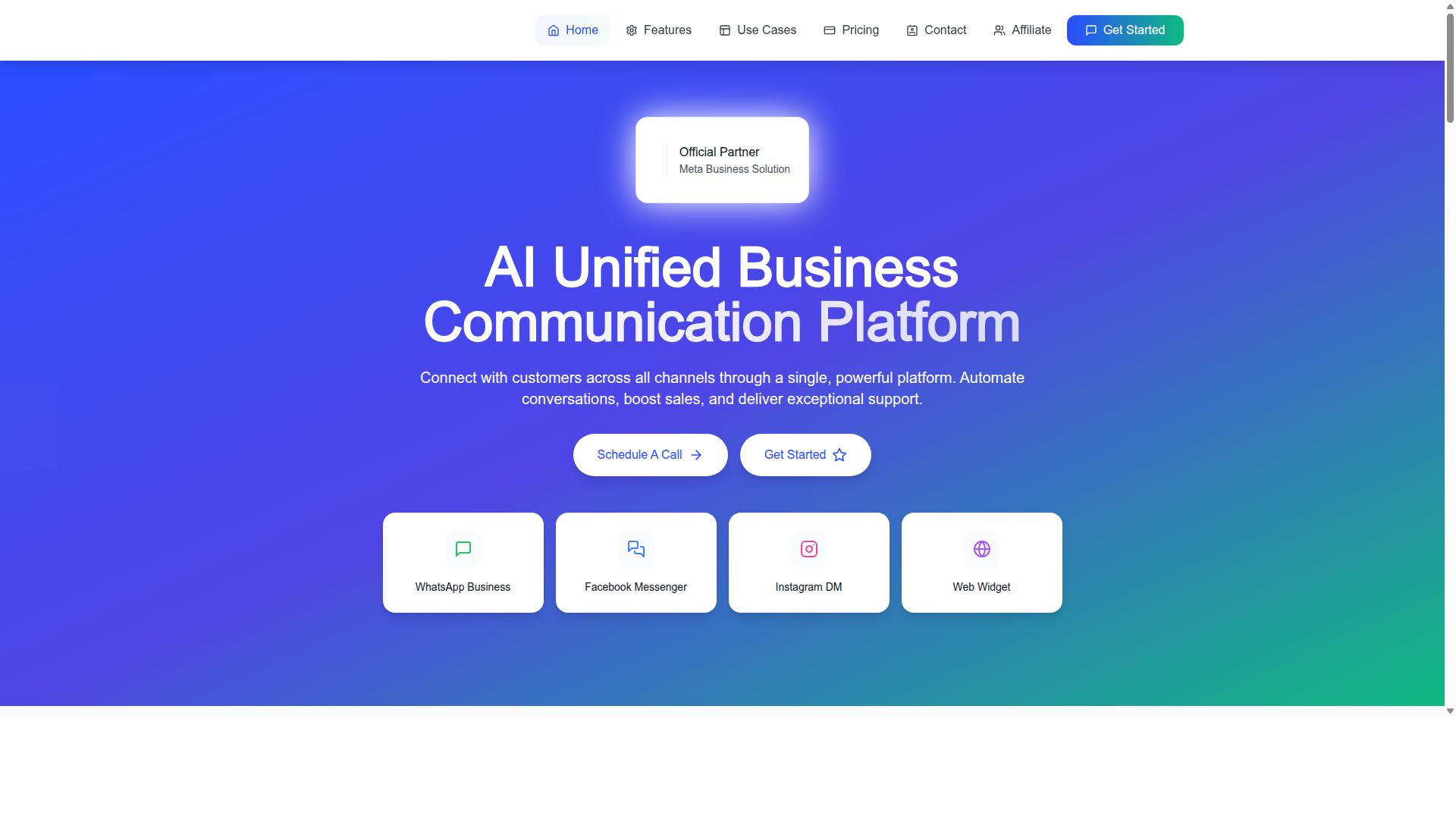
Com.bot's Unified Team Inbox lets you assign roles that control access to conversations across all connected channels from a single dashboard. Instead of juggling separate permission settings per tool, admins manage authorization in one place.
The platform supports WhatsApp, Facebook Messenger, Instagram, and Web Widget, and its Team Collaboration features include role-based access. That means a role can be scoped to the channels and actions relevant to a given team.
Admins can also create custom roles and set granular permissions, such as who can delete conversations and who can export data. These controls matter for data privacy and compliance work, where sensitive data and PII should only reach authorized staff.
Com.bot is an official Meta Business Partner, which supports secure API access for the connected messaging channels. For support leaders building a multi-channel RBAC model, this combination of custom roles, per-channel permissions, and centralized administration addresses the core challenge: giving each team exactly the access it needs, and nothing more.
Auditing, Onboarding, and Scaling Your Access Model
An RBAC model is not set-and-forget; it requires regular audits and a smooth onboarding and offboarding process. Teams change constantly. People join, move between support tiers, take on new responsibilities, and eventually leave.
Every one of those transitions is a chance for permissions to drift. A tier 1 agent who temporarily covered escalations may keep tier 3 access long after the assignment ends. A departing employee may retain credentials nobody remembers to disable.
Without scheduled access reviews, permissions only accumulate. The result is a role structure that looks tidy on paper but no longer reflects who actually does what. Regular audits, clean offboarding, and a scaling plan keep the model honest as headcount grows.
Reviewing Access Regularly and Offboarding Cleanly
A quarterly access review can catch a former employee who still has admin rights, a common audit finding. The fix is a repeatable process, not a one-time cleanup.
- Generate a report of every user and their assigned roles from your help desk, CRM, or identity provider.
- Have managers confirm that each person's access is still needed for their current duties.
- Revoke unnecessary permissions promptly, then document what changed and why.
Offboarding deserves the same discipline. The moment someone leaves, disable their account, transfer open tickets to a teammate, and remove them from every shared channel and distribution list. A delayed deprovisioning step is one of the most common causes of unauthorized access.
Audit logs tie the whole process together. Review them for unusual activity such as after-hours access, bulk exports of customer records, or logins from unexpected locations. Com.bot's audit logs track all actions, which supports this kind of review and helps with compliance obligations under frameworks like SOC 2, GDPR, and HIPAA.
Use this offboarding checklist:
- Disable the account and revoke active sessions immediately
- Reassign or close open tickets
- Remove access to the help desk, CRM, and knowledge base
- Remove the person from shared channels and groups
- Collect or wipe company devices
- Record the offboarding date and reviewer in your audit trail
Growing from 5 to 50 Agents Without Permission Chaos
When you hire your 10th agent, manually assigning permissions becomes error-prone. You need a scalable role structure before the team doubles again.
Start with a small set of core roles, then add custom roles only when a genuine gap appears. Map permissions to teams or groups so you can assign access in bulk rather than one user at a time. Where your identity provider supports it, automate provisioning with SCIM or APIs so new hires get the right access on day one and leavers lose it on their last.
Document each role definition and keep that documentation current. A role nobody can explain is a role nobody can safely review.
The shape of the hierarchy changes with size. A five-person team might run with a single Admin and everyone else on shared agent permissions. At fifty agents, you likely need multiple Admins, a Team Lead per shift, and distinct roles for tier 1, tier 2, and tier 3 support, each with its own escalation paths and data visibility.
Watch for permission sprawl, the habit of granting extra access to solve a temporary problem and never removing it. Every shortcut like that weakens least privilege and blurs segregation of duties. Treat each exception as temporary, log it, and let your regular access reviews clean it up as you scale.
Conclusion: Building a Secure and Scalable Support Team
Implementing RBAC is not just a technical task. It is a cultural shift toward accountability and least privilege. The habits you build early, such as documenting role definitions and questioning every permission request, shape how safely your customer support operation grows.
The practical path is straightforward. Start with a small set of core user roles that match how your team actually works, then map permissions to real workflows rather than job titles alone. Channel-specific rules come next, since email, chat, and social tickets rarely carry the same data sensitivity.
Finally, treat access reviews as a routine, not a one-time project. Regular audits catch privilege creep before it becomes a compliance problem, and they keep your role hierarchy honest as the team changes.
If you are unsure where to begin, launch a pilot team first. A single squad or one support tier gives you a safe space to test role mapping, escalation paths, and deprovisioning steps before rolling access policies out to everyone.
Com.bot offers a unified inbox with built-in RBAC, which means permission assignment and role management live alongside the tickets your agents already handle. That removes much of the friction of bolting access control onto separate tools.
- Begin with core roles and clear permission boundaries
- Map permissions to actual support workflows
- Apply channel-specific access rules for sensitive data
- Run access reviews on a regular schedule
- Pilot with one team before a full rollout
To explore how this works in practice, you can reach the Com.bot team directly. Schedule a demo or start a free trial to see unified inbox access management in action.
Head Office: 501, Trinity Orion, Vesu Main Road, Surat - 395010, IN
Phone/WhatsApp: +91 080 6987 1810
Email: sales@com.bot
Business Hours: Monday - Friday: 9:00 AM - 6:00 PM IST
Support: WhatsApp Support available